Citation management is one of the biggest time sinks in academic writing. The typical workflow looks something like this: you are writing a paragraph in Overleaf, you realize you need to cite a paper, you open a new tab, search Google Scholar, find the paper, click "Cite," copy the BibTeX, switch back to Overleaf, open your .bib file, paste it in, go back to your main .tex file, and type the \cite{} command with the correct key. That is at least eight context switches for a single citation.
PaperPilot eliminates most of those steps by bringing citation search directly into Overleaf. Here is how to set it up and use it effectively.
How do I get started with the citation helper?
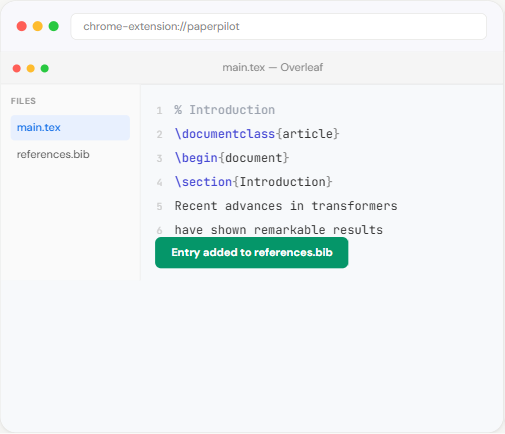
First, make sure you have PaperPilot installed from the Chrome Web Store. It is free and takes a few seconds. Once installed, open any project in Overleaf and you will see PaperPilot's side panel available on the right side of the editor.
The citation helper is accessible from the side panel. Click the citations tab (the book icon) to open it. You are now ready to search for papers without leaving your Overleaf window.
How do I search for papers in the citation panel?
The search bar at the top of the citation panel lets you find papers by title, author, or keyword. Type your query and results appear almost instantly. Each result shows the paper title, authors, publication year, and venue - enough information to confirm you have the right paper without needing to open it in a new tab.
What are some tips for effective searches?
- Use specific phrases: Searching for "attention is all you need" will find the Transformer paper faster than searching for "attention mechanism"
- Include the first author's last name: "Vaswani attention" narrows results immediately
- Add the year for disambiguation: Many papers have similar titles; adding "2017" helps
- Search by venue: If you know the paper was published at NeurIPS, include it in your query
The search draws from major academic databases, so you will find papers from most CS venues, journals, and preprint servers.
How do I preview BibTeX entries before inserting?
Once you find the paper you want to cite, click on it to see the full BibTeX entry. PaperPilot generates a properly formatted BibTeX entry with the correct entry type (@inproceedings, @article, @misc, etc.), all standard fields populated, and a citation key ready to use.
You can review the BibTeX before inserting it. This is important because automated BibTeX generation is not always perfect - sometimes venue names are abbreviated differently than your bibliography style expects, or author names might need adjustment. Being able to preview and verify the entry before it goes into your .bib file saves you from formatting issues later.
What does a generated BibTeX entry look like?
For a typical conference paper, PaperPilot generates something like:
@inproceedings{vaswani2017attention, title={Attention is All You Need}, author={Vaswani, Ashish and ...}, booktitle={NeurIPS}, year={2017}}
The citation key follows a consistent pattern (first author's last name + year + first significant word of the title), making it easy to remember and type in your \cite{} commands.
How do I insert citations into my document?
After previewing, you have two options for getting the citation into your paper:
How do I copy BibTeX to clipboard?
Click the copy button to copy the full BibTeX entry. Then paste it into your .bib file in Overleaf. This is the most flexible approach - you can edit the entry as needed before or after pasting.
How do I insert the cite command directly?
PaperPilot can also insert a \cite{key} command directly at your cursor position in the Overleaf editor. This saves you from having to type the citation key manually, which is especially useful for long or unfamiliar keys. The BibTeX entry is simultaneously added to your clipboard so you can paste it into your .bib file.
How do I manage my bibliography with PaperPilot?
As you add citations throughout your writing session, PaperPilot keeps track of papers you have recently cited. This is useful for two reasons:
- Re-citing papers: If you need to cite the same paper again in a different section, you can find it in your recent citations instead of searching again
- Bibliography review: At the end of a writing session, you can review all the papers you cited and make sure your .bib file is complete
This recent citations list acts as a lightweight bibliography manager that complements your .bib file without trying to replace dedicated tools like Zotero or Mendeley.
When should I use PaperPilot vs. Zotero or Mendeley?
PaperPilot's citation helper is designed for the "I need to cite something right now" workflow - the quick lookups and insertions that happen while you are actively writing. It is not a replacement for a full reference manager if you have a library of thousands of papers organized across projects.
The two approaches work well together:
- Zotero or Mendeley for long-term library management, PDF annotation, and organizing your reading
- PaperPilot for in-the-moment citation lookups while writing in Overleaf, especially for papers you have not previously saved to your library
Many researchers find that a large percentage of their citations come from papers they discover while writing - a reference mentioned in a related work section, a dataset paper they need to credit, or a method paper they want to compare against. These are exactly the cases where PaperPilot saves the most time, because you do not need to leave Overleaf to find and format them.
What citation workflows does PaperPilot improve?
Here are some specific scenarios where the citation helper shines:
- Writing a related work section: You are reading through papers and need to add 15-20 citations in quick succession. The side panel search lets you add each one in seconds instead of minutes.
- Adding a missing reference during revision: A reviewer asks you to cite a specific paper. Search for it in the panel, preview the BibTeX, and insert it without losing your place in the document.
- Verifying citation details: Not sure if you cited the right version of a paper (conference vs. journal)? Search and compare without opening a new tab.
How do I start citing papers faster?
Install PaperPilot for free and open your next Overleaf project. The citation helper is ready to use immediately - no configuration, no account linking, no learning curve. Search, preview, insert. That is the entire workflow, and it takes a fraction of the time you are spending today.